Is your Marketo instance running slow? Noticing things happening out of order? Dealing with frequent sync errors? If you answered yes to any of these questions, then without a doubt, this blog is for you!
Marketo’s campaign prioritization system operates as a queue, where high-priority campaigns take precedence.
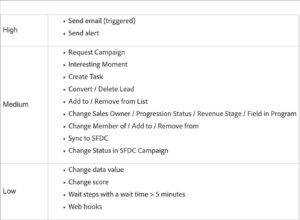
Marketo campaign prioritization depends on a precise order of operations for data processing—like lead scoring, funnel timestamps, campaign attribution, and data normalization—to ensure optimal system performance.
This sequential processing is critical. When a Marketo instance handles numerous high-priority campaigns alongside a large database, this order can become disrupted. As a result, significant issues may arise.
>>Related: 10 Essential Steps to Prepare for a Marketo Migration<<
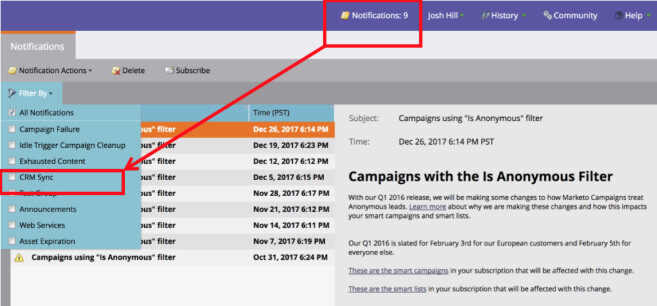
When the synchronized steps break down, they can quickly devolve into chaos, leading to CRM record sync errors, causing MQLs to stall and fail to reach sales reps, and resulting in incomplete campaign metrics due to out-of-order data processing.
To prevent this in your Marketo instance, understand the key factors that influence campaign priority:
Default Priority: Marketo assigns a default priority based on a campaign’s flow steps. Campaigns sending:
-
- Emails
- Sales Alerts
will have a higher default priority than those performing background tasks like data value changes.
- Override Priority: Marketo administrators with proper permissions can manually increase the priority of trigger campaigns to ensure critical alerts are sent immediately. This is particularly useful for time-sensitive lead behaviors, such as a demo request.
- Queueing: When multiple triggers occur simultaneously, Marketo processes campaigns in priority order. A new high-priority trigger campaign jumps ahead of lower-priority ones in the queue. You do not want this to happen.
- Batch vs. Trigger: Trigger campaigns and batch campaigns are processed in separate queues. This separation prevents large, scheduled batch campaigns from delaying real-time trigger alerts.
How to set your instance up to scale:
Step 1: Identify Marketo’s high-priority triggers and flow steps, and use them sparingly throughout your instance to minimize system load.
Examples:
- Person is created trigger: This should be used once in one trigger campaign in a central operations program. Using the general “Person is Created” trigger places a heavy load on your system—particularly when the campaign runs for every new record. Therefore, set up a single-use case where the trigger fires only once per person at creation. By doing so, you ensure that subsequent form submissions or updates don’t re-trigger the same campaign unnecessarily.
- Wait Steps: To ensure the campaign fires quickly, avoid using the “Wait” action in your flow steps
- Sales Alerts: Send from 1 central operations program. Use a “Request Campaign” step to trigger alerts centrally, avoiding the need for a “Send Sales Alert” step in every campaign.
Step 2: Document Data Processing: First, clearly outline the necessary steps for processing a new record in Marketo before it syncs with CRM to ensure accuracy and consistency.
Step 3: Implement Centralize Operational Programs: Build high-priority triggers and flow actions in one central location within Marketo, ideally under “Marketing Activities” in an “Operations” folder.
Step 4: Thorough Testing: Conduct rigorous testing and make necessary updates to ensure data processing is accurate and in the correct order..
Step 5: Standardize with Templates: Create program templates that the Marketing team must use as a base for all new campaigns. Always clone from the template.
By consistently implementing these best practices, you can not only maintain a highly efficient and accurate Marketo instance, but you can also proactively prevent common processing bottlenecks. Consequently, you’ll ensure seamless data flow between marketing and sales, thereby supporting smoother operations and driving better overall performance.