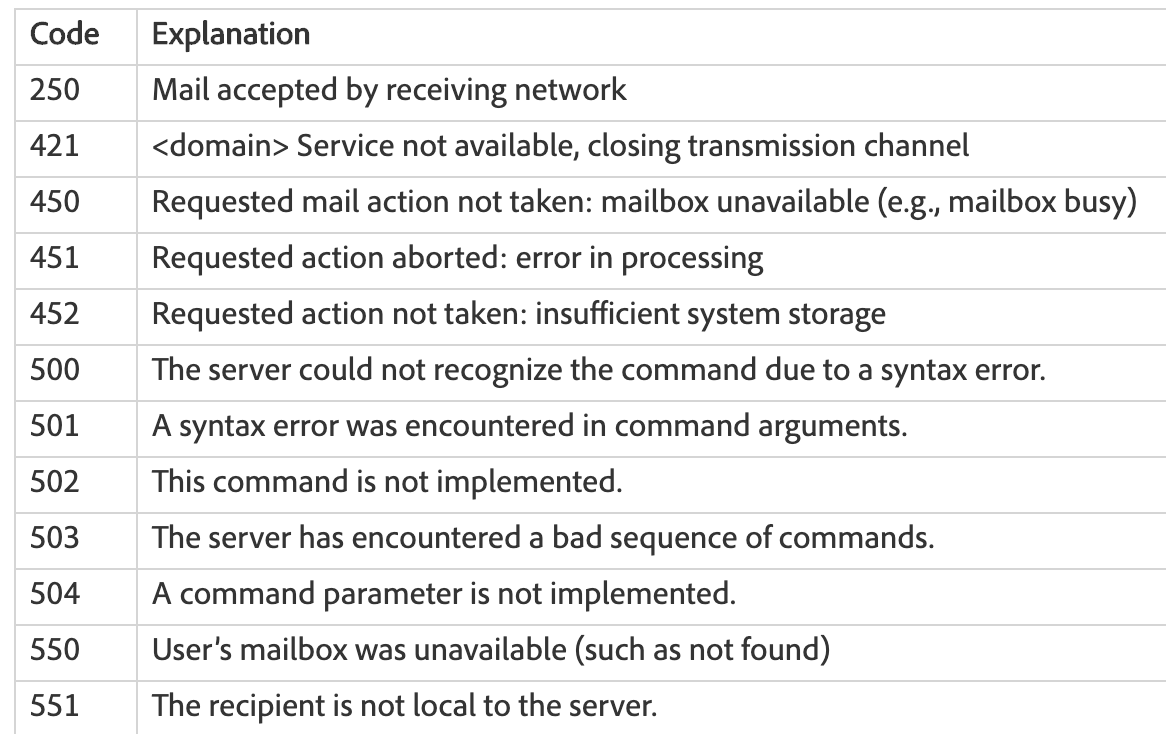
Marketo’s Email Invalid field flags leads with incorrect email formats or hard bounces marked by 5## codes, showing the address is no longer valid.
Note that while the 5## code is standard, the bounce reasons may vary by company.
>> Related: How to Update the Default Marketo Unsubscribe Landing Page <<
These common hard bounce codes trigger Marketo to set the Email Invalid field to ‘True’:
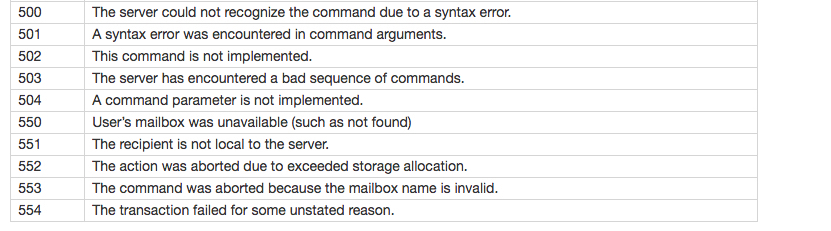
To see other high-level bounce reasons, Kenneth Law wrote a good summary in the Marketo Community here. Bounce reasons also populate Marketo’s Email Invalid Cause field, which lets you analyze the types of hard bounces unique to your email instance.
In this post:
What should I do with the Email Invalid field?
There are a few smart campaigns I recommend be built in your operational folder in Marketo to further manage invalid emails. Before I dive into those, let’s walk through the initial Marketo/Salesforce integration as it relates to this field since it’s known to cause issues.
Typically, when integrating Marketo with Salesforce there isn’t a standard SFDC field available to map to Marketo’s out-of-the-box “˜Email Invalid‘ field. The result is the field is left unmapped Marketo.
A few months later, customer service or sales reps need a way to identify bad emails. They ask their SFDC admin to create a field showing if a record’s email is valid. Enter the new Email Invalid field in Marketo!
The Salesforce custom field code can vary—for example, Invalid Email Address_c. A common fix is a Marketo smart campaign that monitors field changes in Salesforce or Marketo. The campaign flow then uses a Change Data Value to update both fields—or, in some cases, auto-updates them across multiple campaigns. This gets messy really quick and there is an easier way!
Remapping Marketo’s Email Invalid field
First, it’s worth noting that any time a new field is created in Salesforce that has anything to do with evaluating email data, your Marketo Admin/Marketing Ops person should be involved in the decision. The Marketo Admin should then assist in getting the new custom Salesforce field mapped to the current unmapped Marketo field. Finally, the new Salesforce field should be a read-only field, so the field value is driven by Marketo automation.
If this is a brand new field in Salesforce i.e. no data is populating that field yet, then your Marketo Admin can submit a support ticket, to request a remap of the field. Marketo does this for free, but to help them accomplish this quickly below is exactly how you would ask them in the ticket:
Subject Line: Request a Re-Map of a custom field in salesforce to an existing standard field in Marketo.

Description: Please remap the fields below.

Current Marketo Mapping:
Field name = Email invalid
CRM field Map: Unmapped

CRM field Map: Invalid_Email_Address__c (SFDC Lead) [note* update the name value here with your new SFDC custom field API Name]
Invalid_Email_Address__c (SFDC Contact)

Desired Mapping:
Marketo Field name: Email invalid
SFDC CRM field Map:
Invalid_Email_Address__c (SFDC Lead) [note* update the name value here with your new SFDC custom field API Name]
Invalid_Email_Address__c (SFDC Contact)
Once the mapping is completed by Marketo CS, Email Invalid will now control that field automatically by evaluating hard bounces and badly formatted emails as discussed above, as well as in any additional smart campaigns you have set up in your instance to update the Email Invalid field.
What to do if your Salesforce custom field is populated with data?
If you are reading this and you fall into my “˜band-aid’ smart campaign scenarios outlined above – no worries – you can still re-map and submit a ticket exactly like the example above. But there are a few additional steps to take before you can submit the Marketo support ticket.
Step 1: You’ll need to ensure that you normalize the field data for the Marketo system Email Invalid field. This is because once Marketo remaps the fields the values in your custom SFDC field will match. To do this you would run a batch smart campaign that looks for inconsistent values across the two fields, and the flow updates them to match. Below is an example of how to do this.
Smart List:

Flow:

Step 2: Remove the custom field from all smart campaigns, emails, landing pages or smart lists where it’s referenced. To see where it’s used Go into Admin> Fields> and pull over the custom field. You will see a list of where it’s used. Then one by one remove that field from those places [see, it can be messy!]
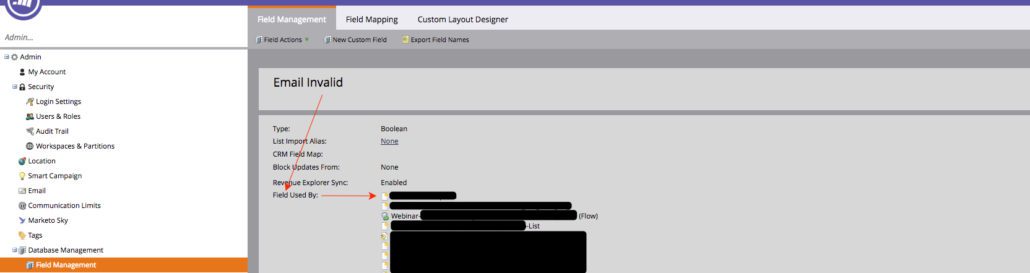
After removing your custom field from all references, submit your support ticket following the instructions above. Once Marketo completes the remapping, set up additional Email Invalid smart campaigns to manage the field.
Smart Campaigns to manage the Email Invalid field
First, understand that Marketo does not automatically switch an email from True to False when you or a Customer Service or Sales rep correct it in Marketo or Salesforce.
For this reason, I recommend that you set up a trigger campaign that listens for this scenario. In the smart list, include only leads that are currently Email Invalid to avoid unnecessary processing. Also, filter out empty email addresses so cleared records aren’t marked as valid. Example below.
Smart List:
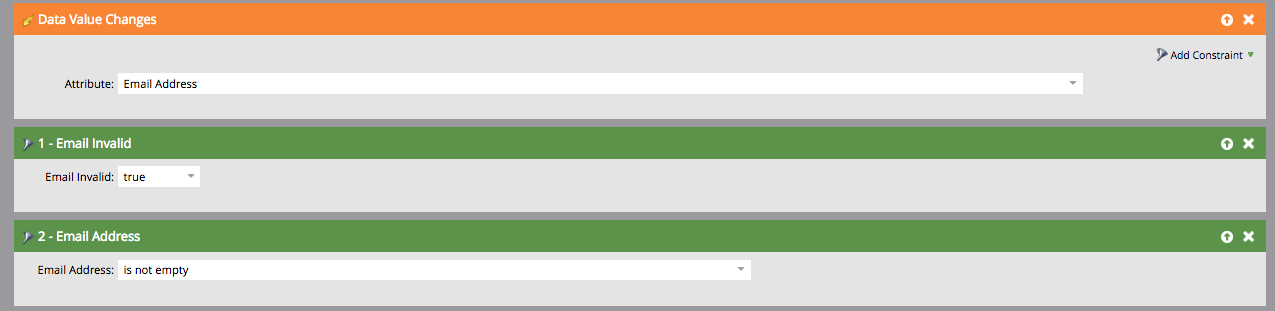
Flow:
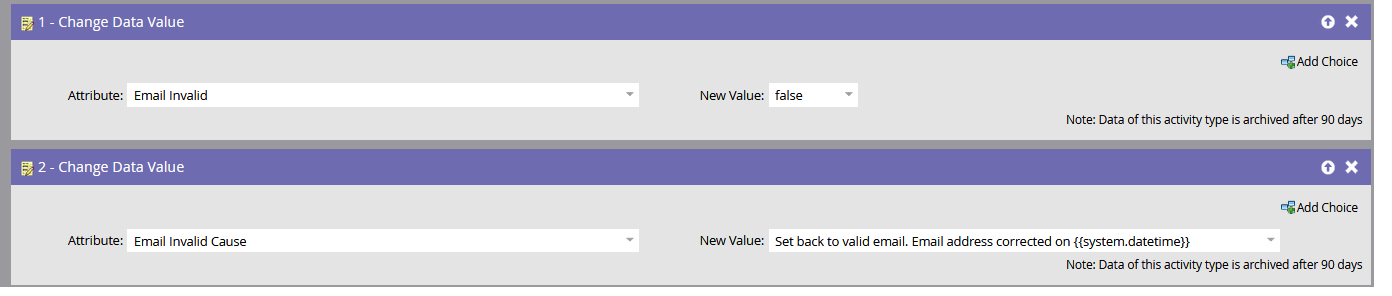
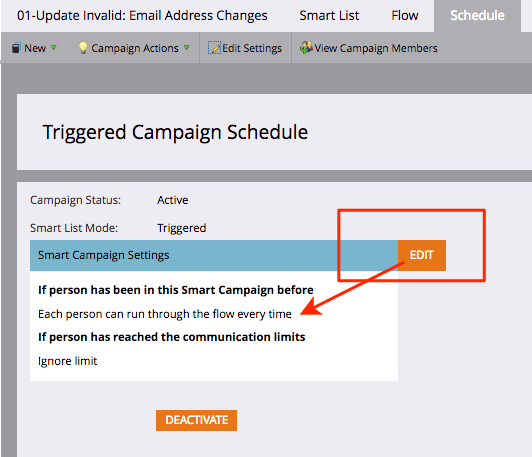
Your flow will update the Email Invalid to False, and update the cause. Adjust the qualification rules in the smart campaign’s schedule so leads can flow through every time.
Next, create a smart campaign that monitors hard bounce codes and filters for common bounce reasons when evaluating email deliverability. You’ll want to make sure that you have a filter for Email Invalid = False, see below example.
Smart List:
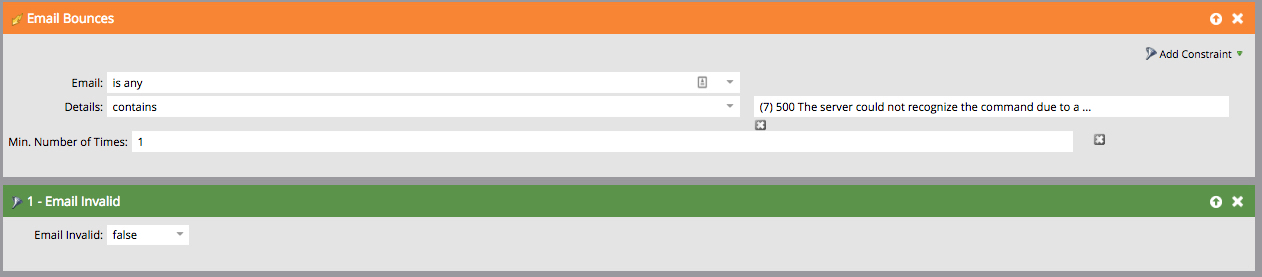
Flow:

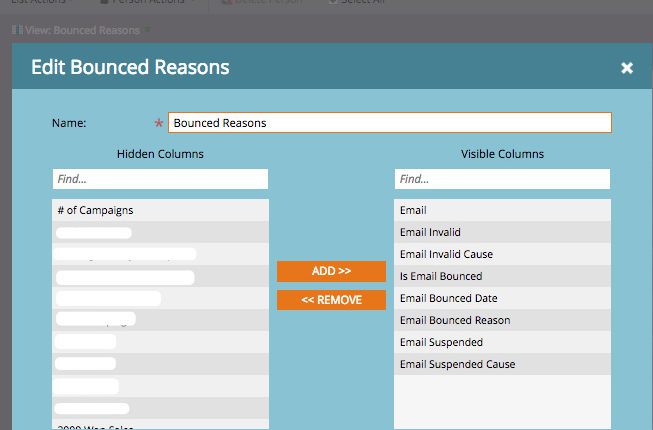
It’s best practice to keep a pulse on these monthly, so I recommend creating smart lists and creating a new custom view with the fields identified in the screenshot below. This will allow you to see who is bouncing and what common bounce codes and reasons you are seeing. Then you can update your listening smart campaign to make sure you are capturing all scenarios that are unique to your hard bounce deliverability criteria.
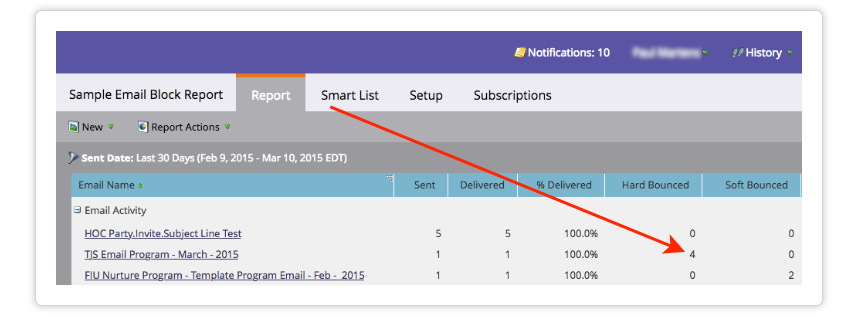
Finally, build an email activity report to see which emails get the most Hard Bounces. In the Setup tab, set the date field to ‘This Year,’ and under Program Selection, check ‘Default.’ The report will show results like the example below, helping you identify programs for further analysis.
And there you have it—a few solid tips to manage bad emails using Marketo’s Email Invalid field and keep spam scores low. Happy marketing!
FAQs
What does Marketo’s Email Invalid field do?
Flags leads with bad email formats or hard bounces (5## codes) to show the address is invalid.
How does Email Invalid integrate with Salesforce?
Map a custom Salesforce field to Marketo’s Email Invalid field. Make it read-only so Marketo automation drives the value.
What if the custom field already has data?
Normalize the data with a batch smart campaign, remove the custom field from existing references, then submit a remap ticket to Marketo.
Does Marketo automatically update corrected emails?
No. Set up a trigger campaign to update Email Invalid to False when emails are corrected in Marketo or Salesforce.
How can I monitor and manage invalid emails?
Create smart campaigns for hard bounce codes, common bounce reasons, and monthly email activity reports to track and clean bad emails.